
Sort mail automatically in Ultimail: rules, labels, and AI sorting
Step-by-step guide to organizing your Ultimail inbox: unified labels, inbound sorting rules, webhooks, and LLM sorting, without letting the inbox become a warehouse.

We have deployed Ultimail for teams receiving 200-400 mails per day across three addresses. The pattern that works is not "one magic rule", it is a simple hierarchy: labels first, then deterministic rules, then LLM branches for spam and urgent items.
Before creating rules: structure labels
Ultimail labels are unified: the same "Invoices" label can apply to mail received at contact@ or accounting@. That is the foundation of all automatic sorting.
- Open Ultimail → gear icon → Réglages (or directly
/mail/settings). - Section Libellés et dossiers → Libellés tab.
- Create the following labels (colors optional):
| Label | Use |
|---|---|
Factures | Vendors, PDFs to pay |
Clients | Inbound requests, quotes |
Newsletters | Monitoring, SaaS tools |
Interne | Team, HR, management |
À traiter | Human queue |
Do not create 40 labels on day one. Five are enough for 90% of flows. You can refine after two weeks of observation.
Rule #1: known senders → direct label
Most common case: invoices always arrive from the same domains.
-
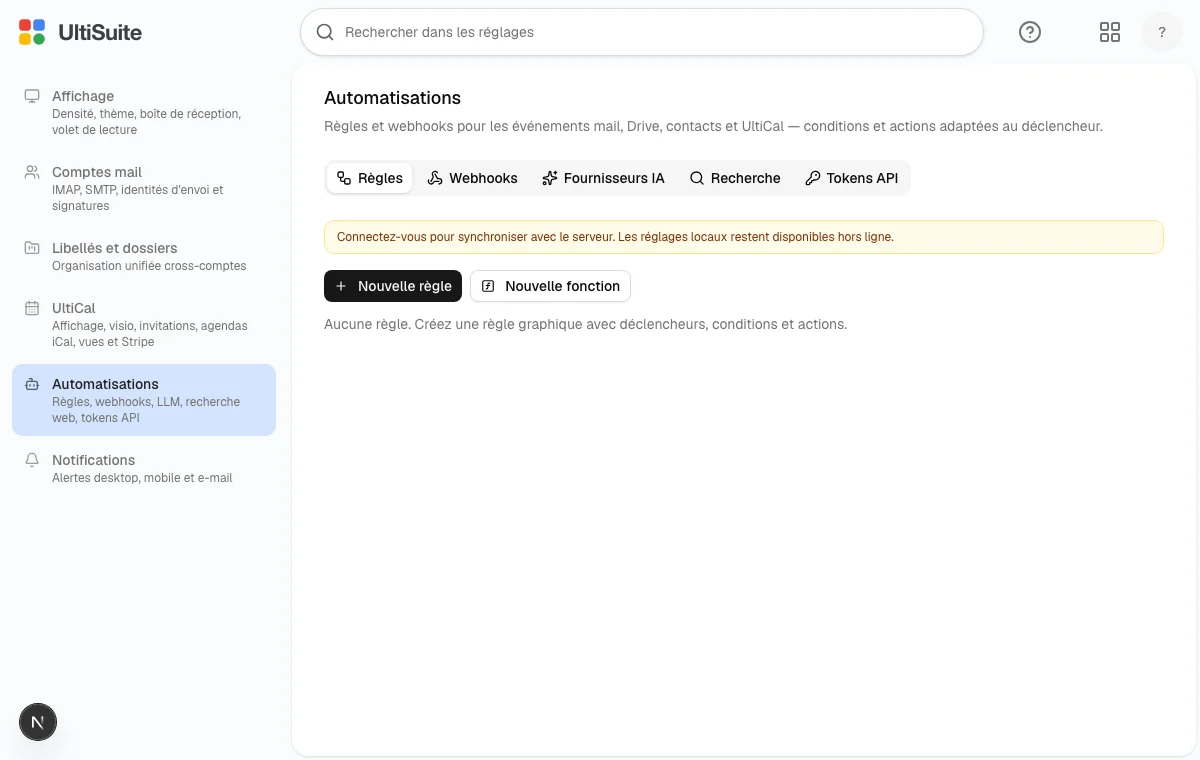
Réglages → Automatisations → Règles tab (
/mail/settings/automation). -
Click Nouvelle règle.
-
In the workflow editor:
- Trigger: "À la réception d'un message"
- Condition: sender contains
@stripe.comOR@ovh.com(adapt to your vendors) - Action: Apply label
Factures - Action (optional): Remove from inbox (visual archive)
-
Name the rule
Factures, fournisseurs connus, priority 10, enable the toggle.
Repeat for your client domains (@important-client.fr → Clients label). Rules run server-side: even if your browser is closed, sorting continues.
Rule #2: newsletters → label + archive
Newsletters clutter the inbox but remain consultable. The rule editor cannot yet target a precise HTTP header, we rely on reliable text signals:
- Condition (OR branch): subject contains
newsletterOR subject containsdigestOR body containsunsubscribeOR sender contains@substack.com(add your usual sources) - Actions: label
Newsletters+ archive
Rule #3: LLM branch for spam and urgent items
The workflow editor offers an Vérification LLM (llm_check) node: it is not yet a free classifier that returns an arbitrary label. Today it serves as a yes/no fork on targeted cases, spam or urgency detection per prompt.
Concrete example:
- Automatisations → Fournisseurs IA tab: configure an OpenAI-compatible endpoint (prepares integration; the engine is evolving).
- Create a priority 50 rule:
- Trigger: on receipt
- LLM node: prompt containing the word
spam(e.g. "Is this message spam?") - Yes branch →
Marquer spamaction - No branch → another LLM node with
urgentin the prompt → yes branch → labelÀ traiter+Marquer important
Webhook: notify Slack when a "Client" mail arrives
Ultimail can POST JSON to an external URL on each match.
- Automatisations → Webhooks tab → create a Slack-type webhook (JSON template provided).
- Dedicated rule:
Clientslabel applied → trigger webhookslack-clients.
Useful for a sales team that does not live in mail but wants a ping on inbound leads.
Verify it works
| Step | Action |
|---|---|
| 1 | Send a test mail from an external address |
| 2 | Open the simulator in the rule edit dialog (below the workflow editor) |
| 3 | Check the label in the list after sync (a few seconds) |
| 4 | Check admin logs if a rule does not match |
If nothing happens: the rule may be inactive, or a higher-priority rule already modified the message.
Mistakes we see often
Too many rules stepping on each other. Solution: document priorities and test with the simulator.
Labels created on the fly in each rule. Solution: create the label first in Réglages → Libellés, then reference it.
AI on 100% of the flow. Solution: reserve LLM nodes for binary cases (spam, urgent); keep the rest deterministic.
Forgetting multiple accounts. Unified labels solve this, one rule applies to all accounts attached to the Ultimail account.
Go further
- Configure your mail accounts and sending identities before automating, sorting is useless if MX is not stable.
- Compare UltiSuite and Google on mail automation in our SMB comparison.
- Discover Ultimail and its programmable webhook capabilities.